How to set-up and manage employees

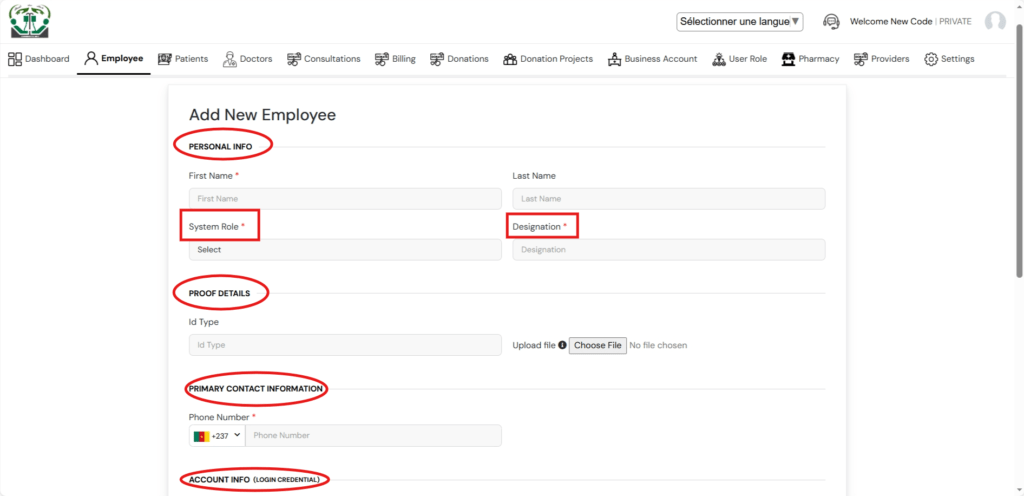
On the employee module, you begin by adding a new employee. This takes you to the Add Employee form where you are expected to fill in the requested information of the employee including the personal information, proof of details, primary contact information, and the employ’s login account information.

Add_employee_chudats_admin

Notably, you are required to apportion a system role to an employee which grants the new employee privileges and limits to login and use the employee’s account and designation or designated duty post.

This is controlled by the user roles module.

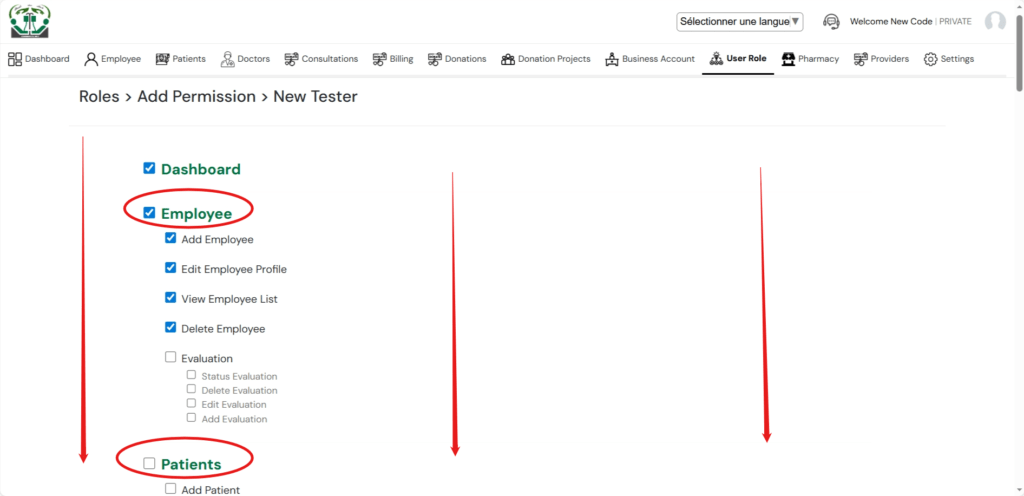
Before adding an employee, the healthcare facility admin needs to primarily create user roles for a list of the designated or needed work posts within the facility. You begin by opening the module, add and name a new role. You can add as many roles as needed. In the list of the roles, open each role added, and further tick permissions to such roles. The permissions grant user rights and listed privileges to access and management various components within the healthcare facility’s admin system.  

The system roles granted to employees will therefore limit their accessibility to the functionalities they can access and manipulate when logged-in.

Within the employee’s module, the facility’s admin can also control the employee’s:

  • Job and pay details that includes a payslip;
  • Employment history;
  • Evaluation by a designated supervisor;
  • Decisions and documents created before and/or during the employment.

0 Votes: 0 Upvotes, 0 Downvotes (0 Points)

Leave a reply

Recent Comments

Join Us
  • Facebook
  • X Network
  • Instagram
  • WhatsApp Channel

Stay Informed With the Latest & Most Important News

I consent to receive newsletter via email. For further information, please review our Privacy Policy

Advert

Loading Next Post...
Follow Us
Search Trending
Popular Now
Loading

Signing-in 3 seconds...

Signing-up 3 seconds...